One button
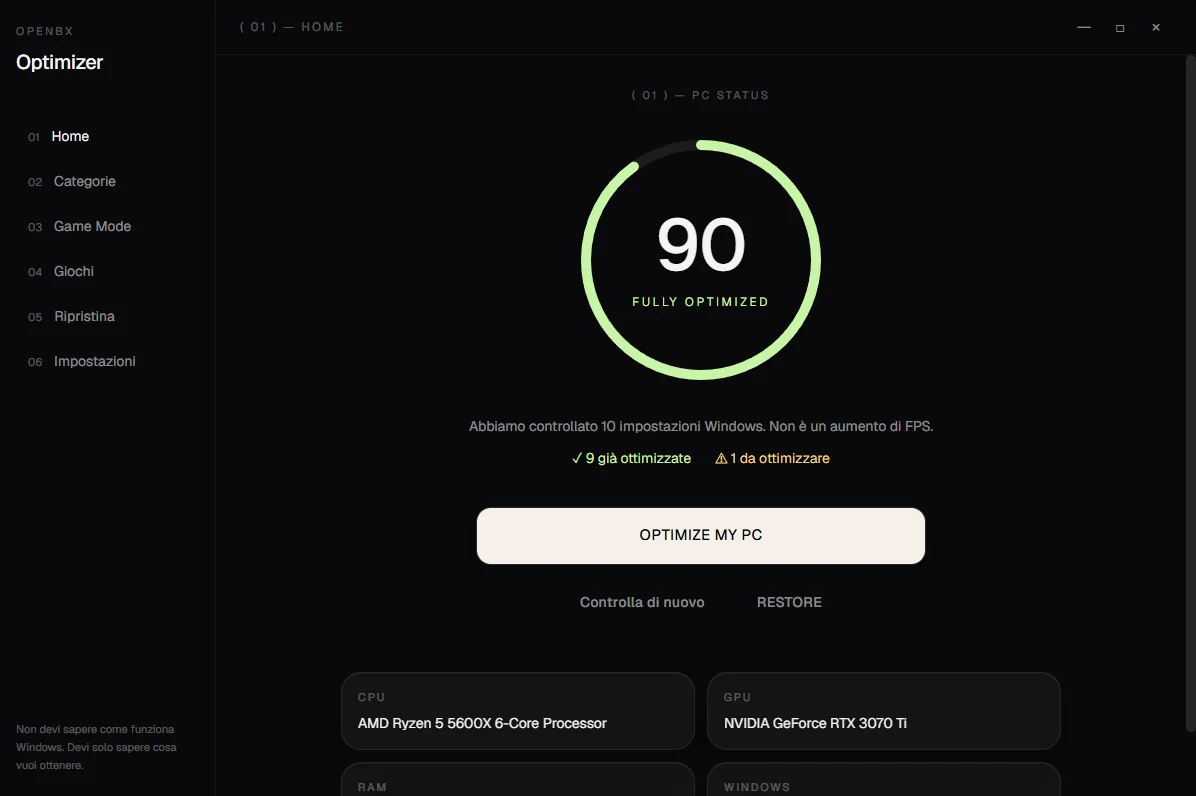
It checks your PC, saves how it was, fixes what is safe to fix, verifies it worked, and shows you the result.
Your PC can run better. One click tells you.
OpenBX looks at how your computer is set up, fixes only the safe things, and tells you what it did. If you do not like it, you can undo it whenever you want.
Takes you to the official downloads page on GitHub
Most programs that promise to “speed up your PC” put hundreds of checkboxes in front of you, with names that mean nothing. Or they copy tips from a video, without knowing whether they work.
OpenBX answers only two questions: can this computer be improved, and what do I press. Press SCAN, look at the score, press OPTIMIZE. That is the whole thing.
If you are curious about what changed, a Details button shows you line by line. If you are not, you can ignore it forever.
It checks your PC, saves how it was, fixes what is safe to fix, verifies it worked, and shows you the result.
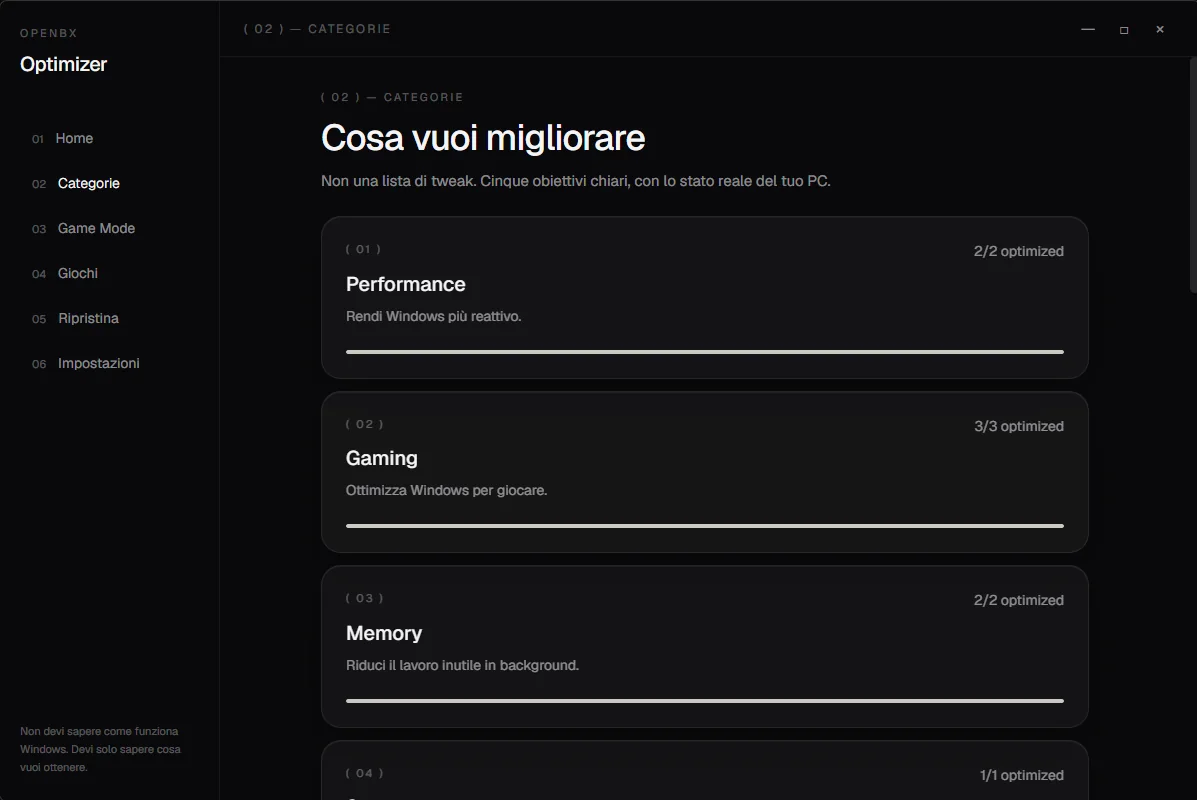
It is the number of settings put right divided by the settings your PC can actually have. No FPS promises, no percentages pulled out of thin air.
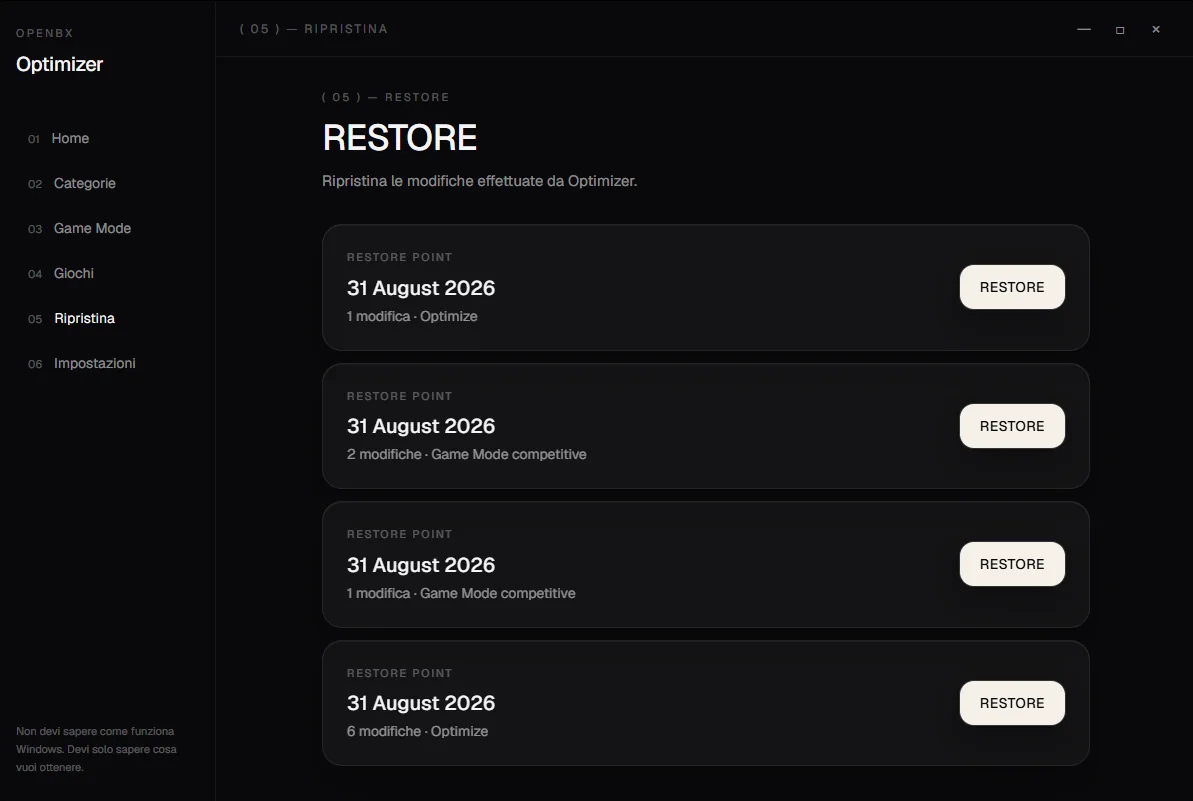
Before changing anything, OpenBX writes down how it was. Restore was designed in from the start, not bolted on as damage control.
If a change makes no sense on your hardware or your version of Windows, it disappears from the list and does not count against your score.
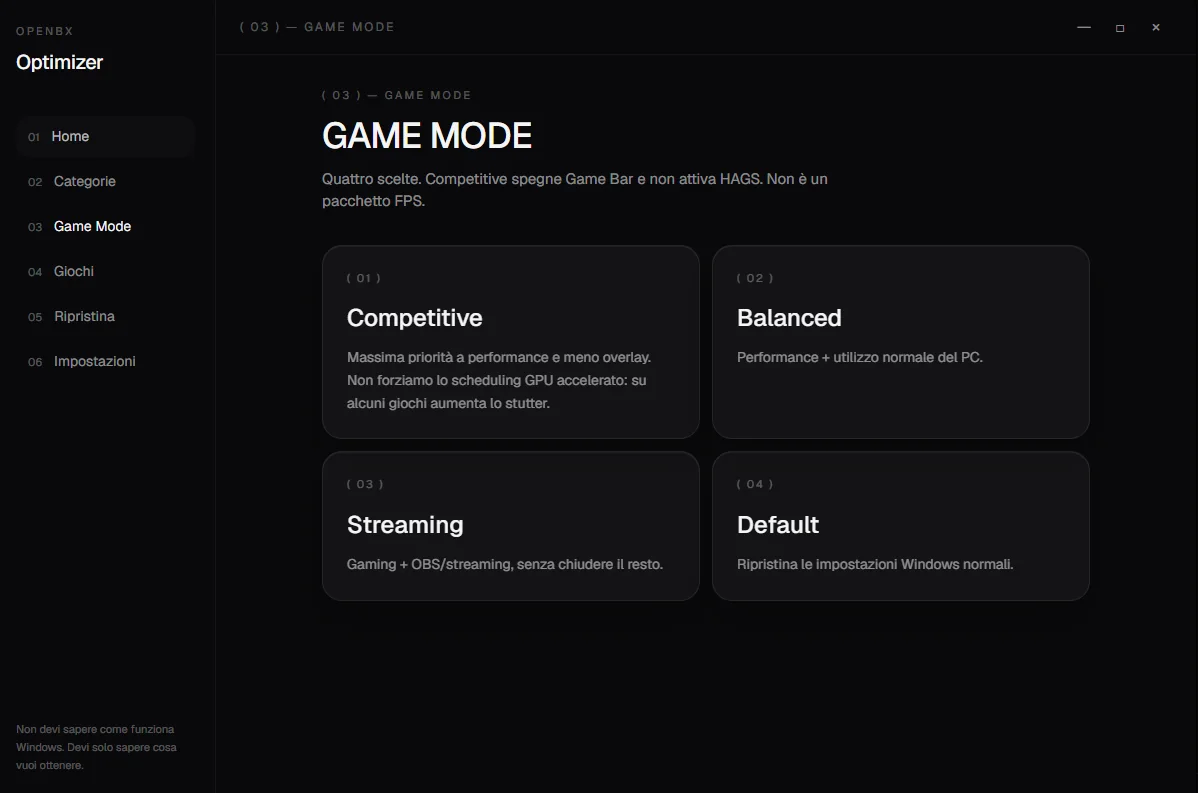
Competitive, Balanced, Streaming or Default. It also finds the games you installed through Steam, Epic, Ubisoft Connect and Xbox.
No account, no email, no statistics sent anywhere. It works without internet: the only connection is an optional update check.
An optimizer can do real damage. That is why some things are ruled out from the start, not switched off somewhere in the settings:

The button above takes you to the downloads page. Take the file ending in _x64-setup.exe.
Double-click the downloaded file and follow the installer. It installs for your Windows user only.
Find it among your programs, like any other app. On first launch, press SCAN.
Some changes need administrator rights: that is the normal Windows prompt, and it only appears when it is actually needed.
Windows may show a blue warning (“Windows protected your PC”). That happens because the installer is not yet signed with a paid certificate, not because the file is dangerous: click “More info”, then “Run anyway”. If you would rather not take my word for it, the code is public and you can build it yourself.
It is free, it is open source, and if it does not convince you it uninstalls like any other program — leaving your PC as it was.